Document Type Management
Document Type Management
In LogAlto, users are able to add/configure Document types.
Add a document type
To add a new type of document:
-
Open the setting menu located in the top right corner

-
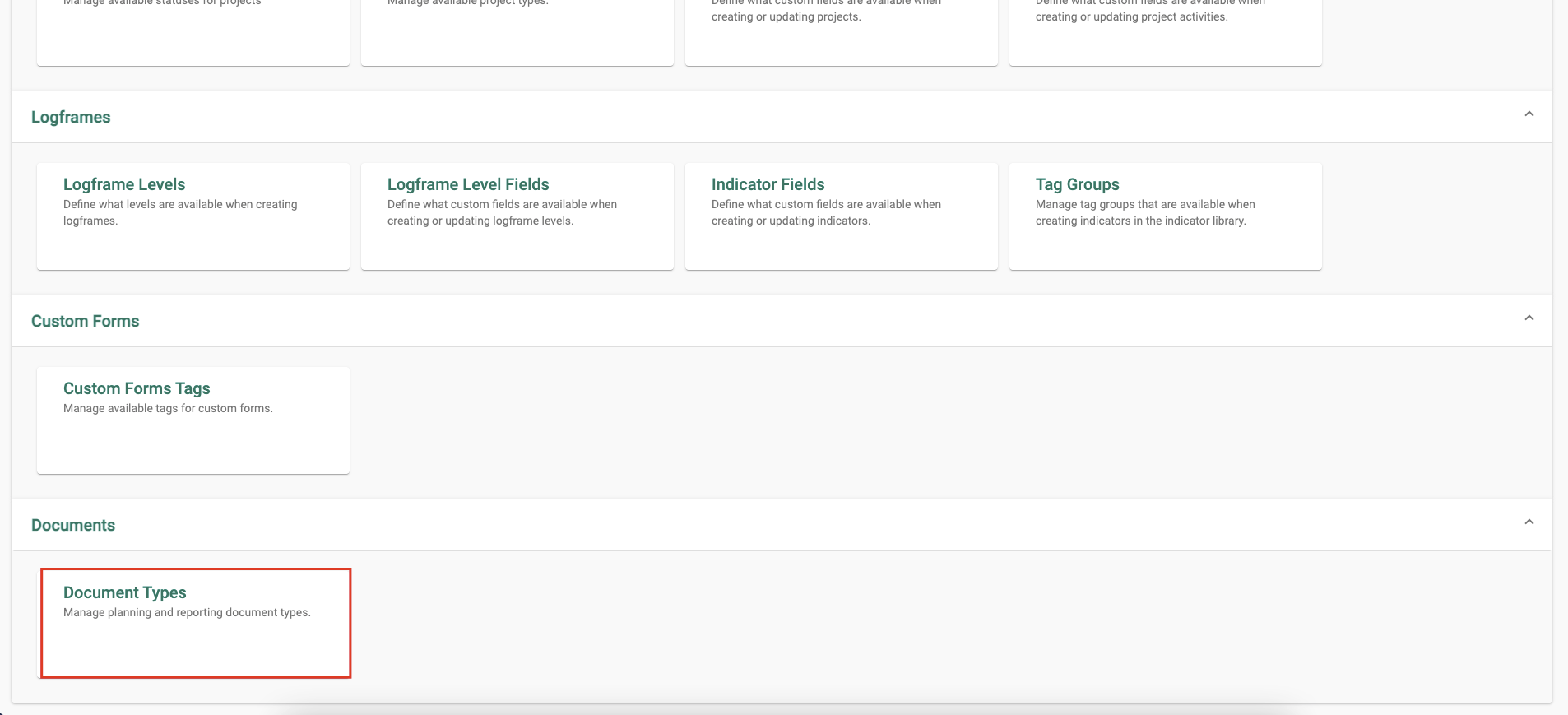
Scroll down the menu and choose Document Types
-
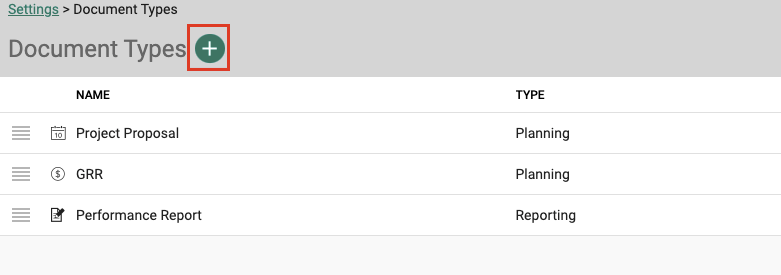
Click on the + sign next to Document Types
-
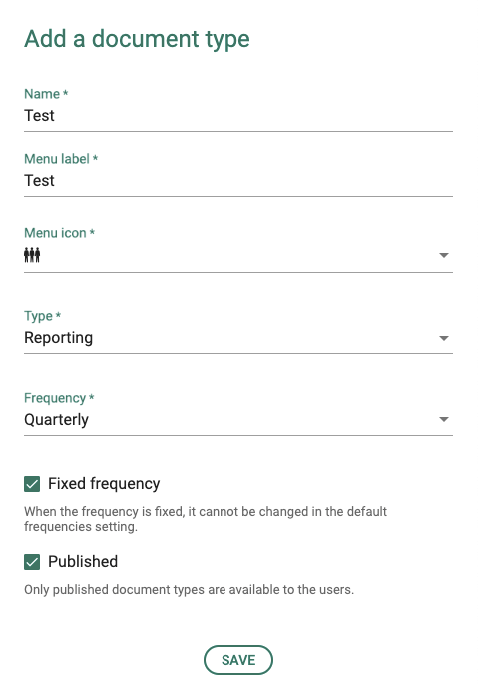
Fill in the information for the new type
-
The new Type should appear

Configure a Document Type
In the new Document type, users are able to add tabs where they can fill the desired fields.
To add a Tab:
-
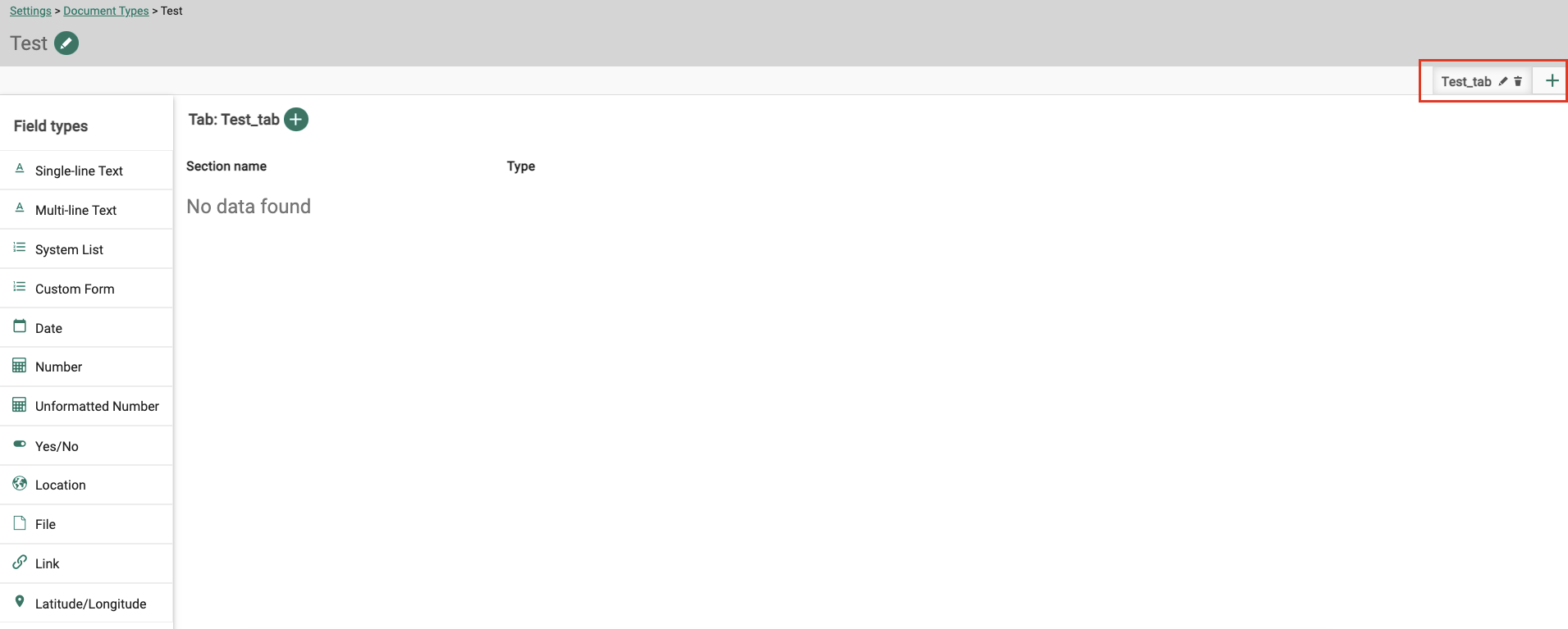
Click on the + in the top right and add the name to your tab
-
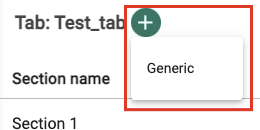
Create a section template by pressing + next to the tab name and choose 'generic'
-
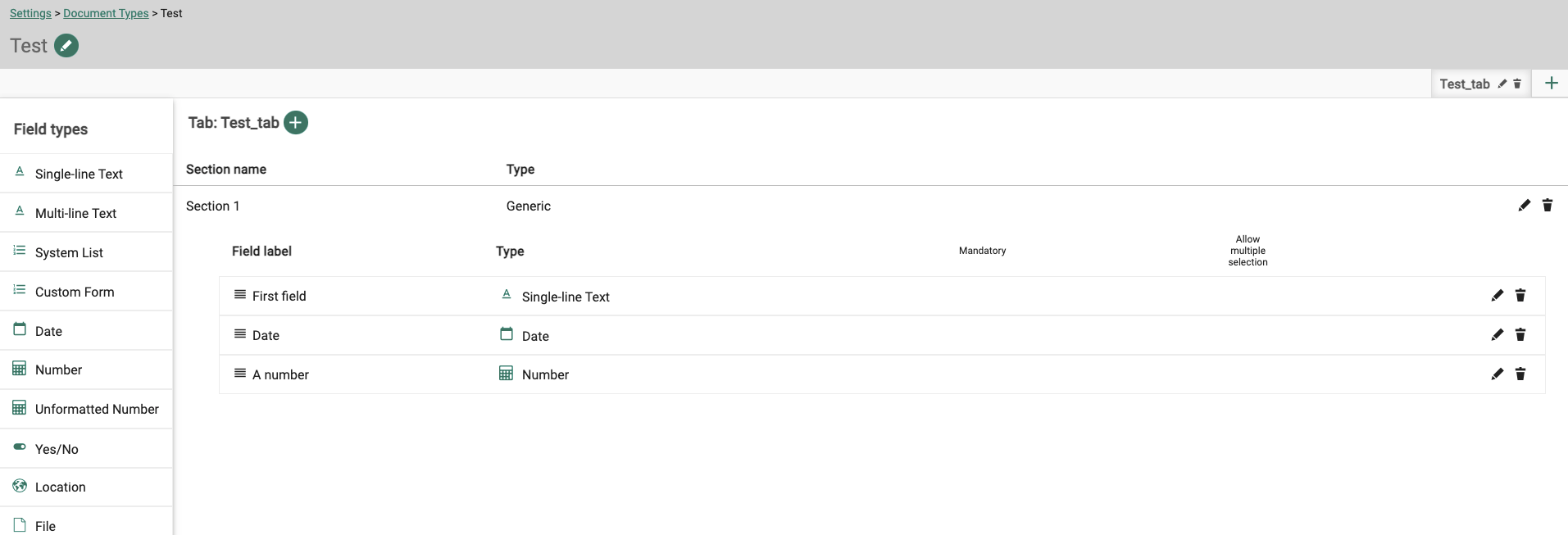
Choose the field types desired by dragging and dropping them
Giving access to the Users
After configuring the new document type, Users will not have access to them unless An Admin profile give them access.
To give acces to Users:
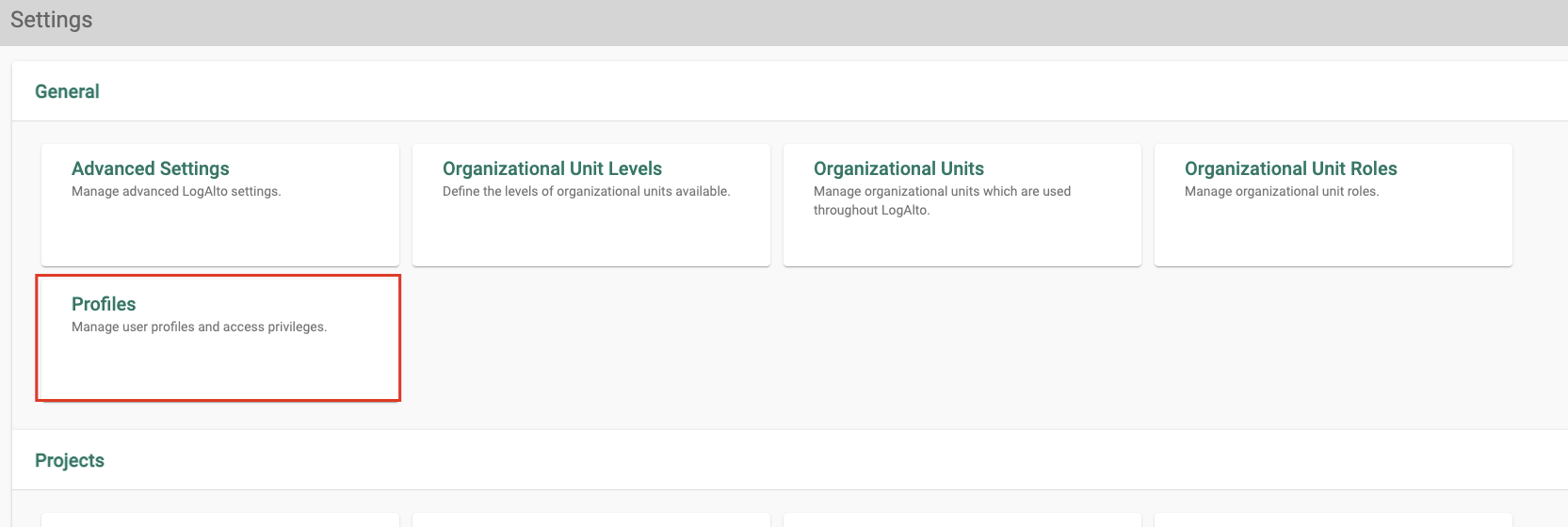
- Go to Settings
-
Choose Profiles
- Choose the desired Profile that will have access to that new type
-
Choose Reporting and planning located at the top bar

-
Locate the new Document Type and enable the required functionalities
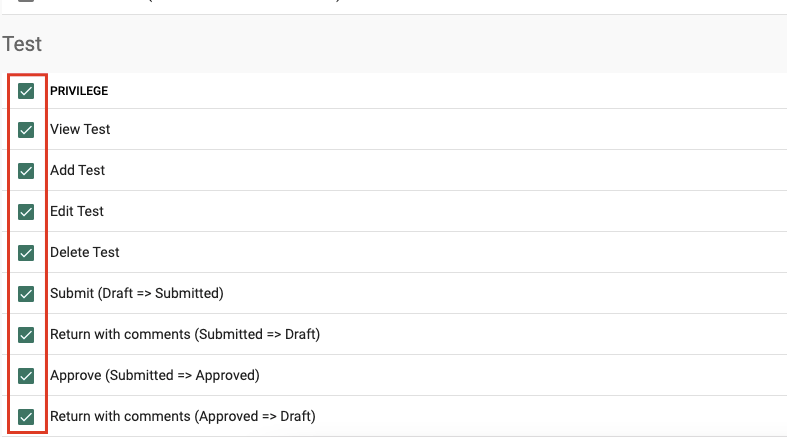
-
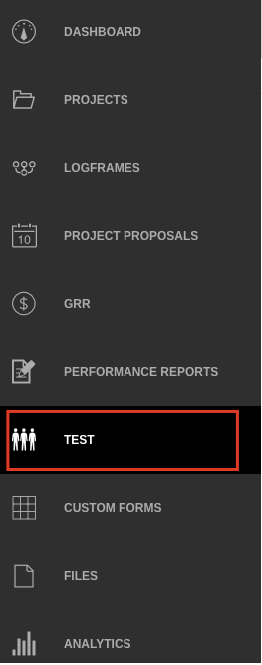
The new Type will show in the side menu on the right